- Keep the mailbox. Deleting the account, or removing its licence, deletes the email within weeks.
- Forwarding gives the successor only new messages. To reach the old ones, use a shared mailbox in Microsoft 365, or copy the mail to another account in Google Workspace.
- Access is only half the job. Years of someone else's email are hard to search.
- With AskNeil, the successor asks a question and gets the answer from the mailbox, with its sources, until a date you set.
Daniel looked after the supplier contracts for six years. Last month he left. This morning Northwind Supplies wrote to say they want new terms at renewal, and Priya, who has taken over his work, needs to know how much notice the company must give.
The answer is almost certainly in Daniel's mailbox. Whether Priya can find it depends on what happened to that mailbox in the week he left.
Your options for a leaver's mailbox
| Option | What the successor gets | Be aware |
|---|---|---|
| Delete the account | Nothing, once the restore period ends | Microsoft 365 deletes the email 30 days after the licence is removed or the account is deleted. Google Workspace gives you 20 days to restore a deleted user. |
| Forward the email | New messages only | Everything before the day they left stays out of reach. |
| Shared mailbox (Microsoft 365) | The whole mailbox, old and new | No licence is needed below 50 GB. Keep the account: it anchors the shared mailbox. |
| Copy the mail to another account (Google Workspace) | A copy of the old email | Do it before deleting the user. Gmail is not moved when you delete a user. |
| Handover access in AskNeil | Answers from the mailbox, with sources, until a date you set | The mailbox must be kept. In Microsoft 365, this works even after the account is disabled. |
Whichever route you take, agree the rules first. A work mailbox also holds personal messages, so decide in your staff policy who may read a former colleague's email, for what purpose and for how long. Then give access to one named person, for a set period.
Access is not the same as finding the answer
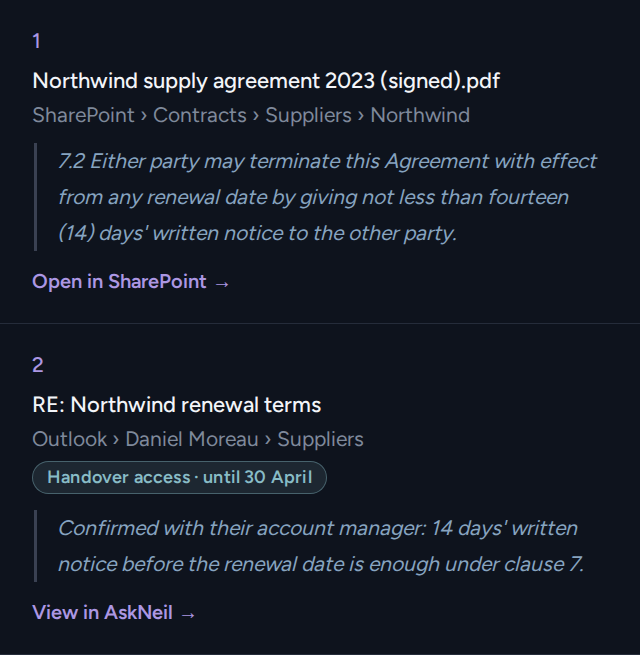
Priya now has Daniel's mailbox: 41,000 emails from six years. Her question is simple, "how much notice do we need to give Northwind?", but search looks for words, and Daniel's emails say "the renewal", "clause 7" and "as discussed on the phone". The answer may be in a reply three weeks after the first message. And the contract itself is in a shared folder, not in his mailbox at all.
- She asks Neil in plain words
- Neil reads Daniel's mailbox together with the shared contract files
- The answer shows its sources, with Daniel's email marked as coming from his mailbox
- One click opens each source. A few minutes.
- She searches "Northwind notice" and gets 300 results
- She opens thread after thread
- She checks the shared drive separately, in case the contract says otherwise
- An afternoon, if she knows what she is looking for.
In short
Keep the mailbox, give one named colleague access for a set period, and agree the rules before you need them. Then make the mailbox searchable, because access to 41,000 emails is not the same as an answer.
For the rest of the handover, see the employee handover checklist.